← How to use the Data Explorer
We build the data from SEC filings with automated pipelines that we keep refining, so some numbers are still wrong. Your reports help us find and fix them, and we are grateful for every one. Here is how to spot a problem, check it and tell us.
- Who this is for
- What to look for
- How to check a number
- Report one row
- Report several quarters
- What a good report says
- Known patterns
- What happens next
Who this is for
Anyone can report a problem, and no account is needed. Team members (checkers) sign in first, and their reports carry their name.
What to look for
These signs point to an error. None of them proves one: each comes with how to check. Look hardest at 13G filers, 13D filers and Forms 3/4/5 filers: their filings are made only when a stake changes, so an old number can stay on the page.
- A yellow row
- Yellow rows are outliers: that quarter, the company’s total is unusually far from its own average. Check: find the one or two rows that make the total jump, and open their filings at the SEC.
- A total over 100%
- Some excess is normal, through short positions or the same shares counted twice. Look for a holder that seems too large, or two rows that look like one stake. Check: open those rows’ filings at the SEC.
- A stake that jumps, or has a gap, between quarters
- Check: open its Full history. If the Filed dates either side of the change differ, open both filings and compare.
- The same investor twice
- Under two names, or a group and its members both listed. Check: look for alike names in the table. On Investors in common, a dot on the diagonal of Their stakes side by side is the same stake reported twice.
- Ownership equal to control at a company with several share classes
- Ownership β and control γ differ when a company has more than one class of stock with different votes. If a holder’s β and γ are the same at such a company, or β is far too high, only one class may have been counted. Check: the company page’s Check at the SEC menu, Annual reports: the cover lists the shares of each class. The proxy statement says how many votes each class has and which holders own which class.
- A Filed date far older than the quarter
- Some filings are carried forward from quarter to quarter (see known patterns), but a newer filing should replace an older one. Check: in Check at the SEC, look for a 13D/A or 13G/A (an amendment) by the same holder filed after the row’s Filed date and before the quarter ends. If it gives a different number, report the row with the newer filing’s link.
- A stake slightly off from the share count
- Our ownership β is shares held divided by the company’s shares outstanding. Check: take the shares held from the filing and divide them by the shares outstanding at the quarter end, from the company’s 10-K or 10-Q for that period (Annual reports or Quarterly reports). A small gap is often just a share count from another date. Say which count you used, and its date, when you report.
- An insider who disagrees with the proxy statement
- Check: the company page’s Check at the SEC menu links the proxy statements (Proxy statements (DEF 14A)); compare with their table of who owns what.
How to check a number
- Open Check at the SEC on the company, investor or history page, or Find the filing at the SEC in the report dialog. If the CIK finds nothing, use Find by name.
- Find the filing by the row’s Filed date.
- Compare the number in the filing with the row, and the date inside the filing with the quarter: a 13F’s period of report, the date of event on a 13D or 13G, the transaction date on a Form 4.
- Copy the sec.gov address of each filing you checked. You will paste it into the report.
Which filing answers which question, and where in it the number is: Checking a number at the SEC on the help page.
Walkthrough 1: report one row
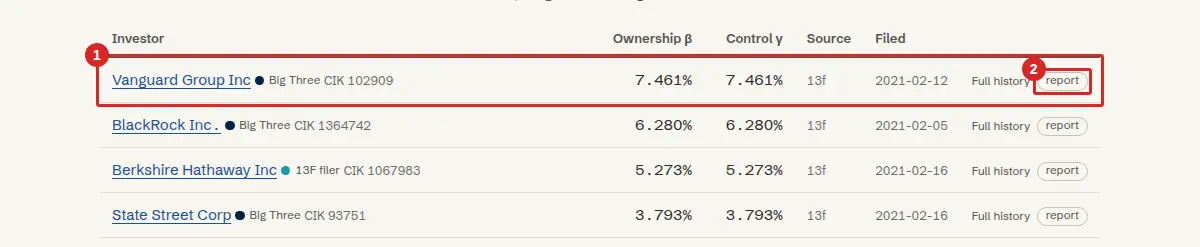
- On a company or investor page, point at the row that looks wrong. report appears at its right-hand end. (On a phone it is always there: swipe the table to the right.)
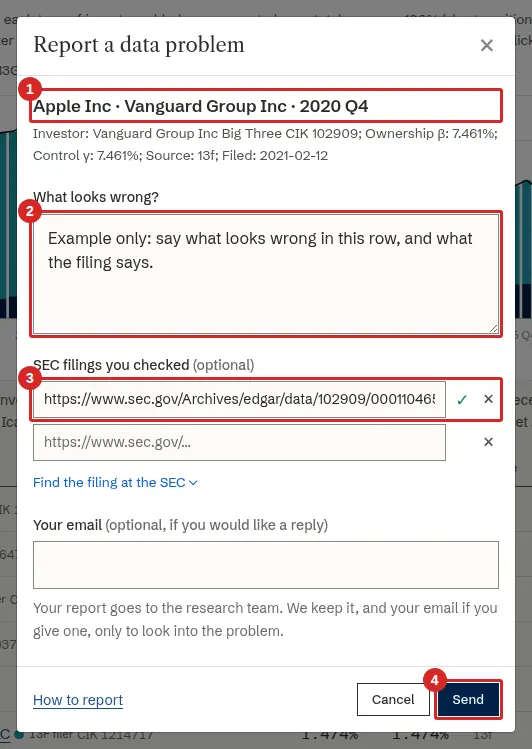
- Click report. The dialog opens with the company, the investor and the quarter filled in, and the values you saw.
- Say what looks wrong, in a sentence or two.
- Paste the sec.gov link of the filing you checked. A tick shows the link is accepted; a new box appears for another one. Find the filing at the SEC under the box opens the filings for that investor and quarter.
- Your email is optional: give it only if you would like a reply. Click Send.
For something about the whole page, or a missing owner, use Report a problem with this page at the bottom of any explorer page. It does not record which row you mean, so name it.
Walkthrough 2: report several quarters
When the same stake looks wrong in several quarters, report them together, from the history page.
- Point at the row and click Full history (on a phone, History ›).
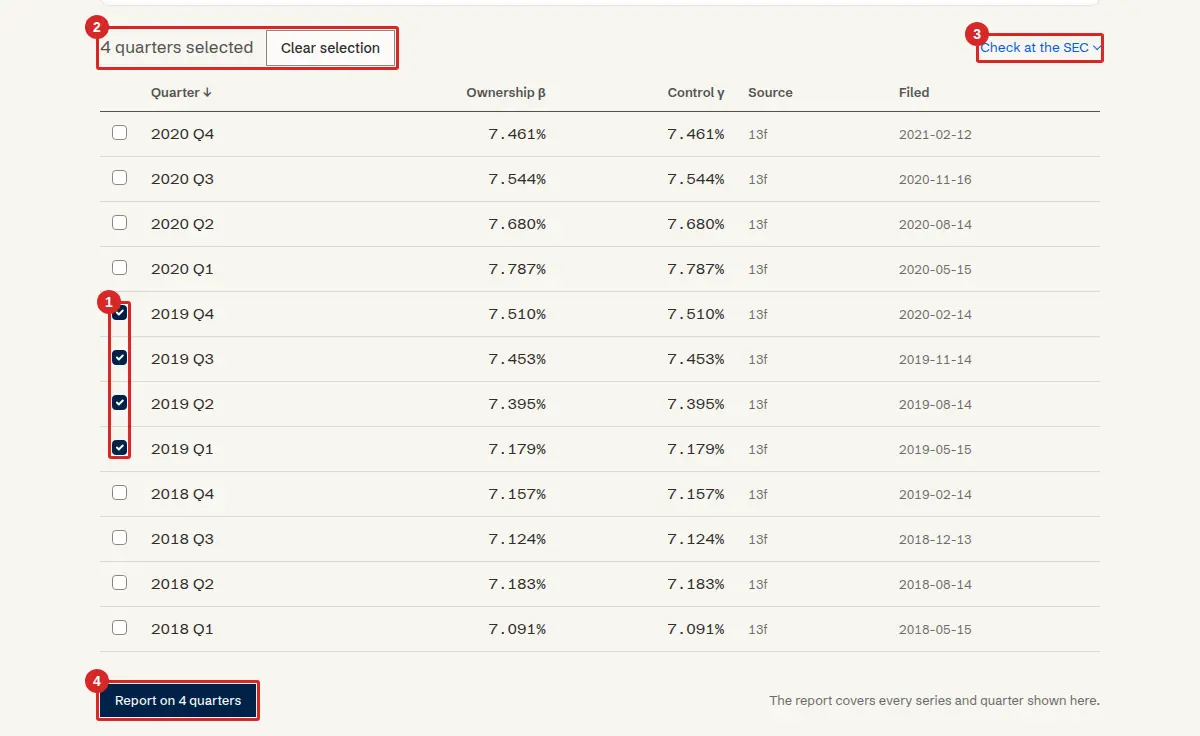
- Select the quarters: tick the box at the left of each table row, or click the point on the chart. The line under the chart says how many are selected.
- Click Check at the SEC. Its links follow the quarters you selected. Open the filings and compare.
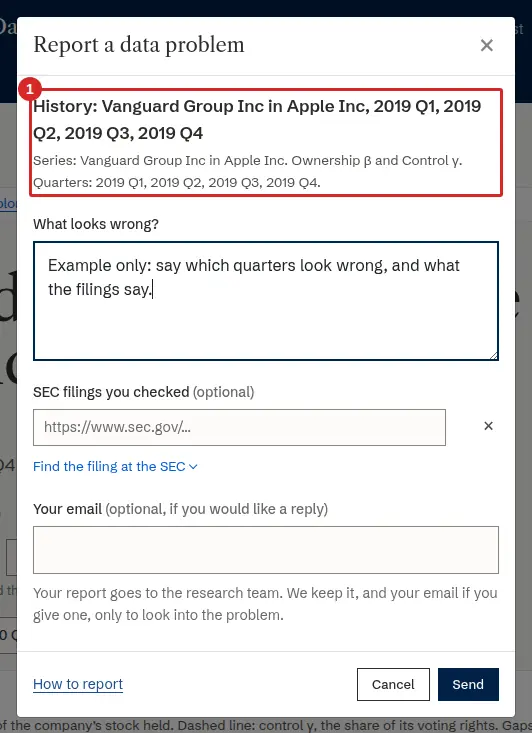
- Click Report on N quarters at the bottom. The dialog records the company, the investor and every quarter you selected. Fill it in as in walkthrough 1 and click Send.
What a good report says
One or two sentences: which row (company, investor), which quarter or quarters, what looks wrong and what the filing says, with its sec.gov link. For example (an invented case): “Investor X shows 12% of company Y in 2015 Q2–Q4; its 13D of 2015-07-03 reports 4%.” “This looks wrong” alone is hard to act on.
Known patterns: no need to report
- A stake disappears after 12 quarters. Filings made only when a stake changes (13D, 13G, Forms 3/4/5) are carried forward for up to 12 quarters, then dropped. The same Filed date on many quarters is one filing carried forward.
- Owner types are named by the forms an investor files. A parent company or a bank holding company that files a 13D shows as a 13D filer. That is by design.
- Red rows. A red row marks a known data problem that is already under review; its note says what is wrong.
What happens next
Every report starts as New. A reviewer on the research team reads it and checks the filings. Your sec.gov links make that quick, but they do not change the report’s status: only a reviewer does. The statuses are:
- New
- Under review
- Confirmed, waiting for the fix
- Fixed in the pipeline
- Not a data problem
- Duplicate
If you gave your email, we may write to you. Team members follow their own reports on My reports.